
Library search tips
Whether you’re just starting out or looking to refine your results, these tips will help you search smarter, save time, and get the most out of everything the library has to offer.
The Library search is your go-to tool for exploring just about everything we have in our collection without encountering any paywalls. It’s a great starting point for academic research, searching across books and ebooks, full-text journal articles, theses and dissertations and videos and multimedia resources.
Start a basic search
- Go to the Library homepage
- Type your search terms (keywords) into the Search box to begin your search. Need help getting started? Check out our tips to build your search strategy.
Find online and physical resources
Library search makes it easy to find both online and physical resources. Whether you’re after a journal article you can access from home, or a book to pick up on campus, you’ll find everything in one place.
To open online resources you can select:
- 'Download PDF' to go directly to a PDF version of the article as it was intended to be printed. This is a great option if you want page numbers to help with your referencing.
- 'Full text available' to take you to a website version of the article.
- 'View issue contents' to show you other articles published in the same issue of the journal.
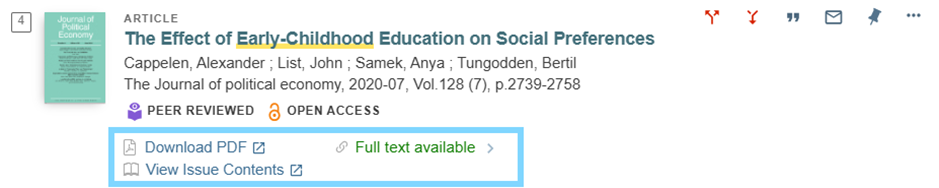
To find a physical resource, like a book, model, or kit, select 'Available at' to view all copies. You will then be taken to a new page where you will see where the item is located, the item’s call number and the status of the item.
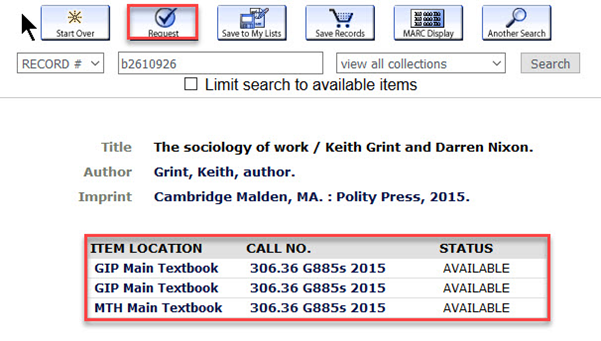
Item location
This tells you what library the item is located and what collection it is in. Each item will have a campus code and a description of what collection it is in.
| Campus code | Location |
| BER | Berwick Library |
| GIP | Gippsland Library |
| MTH | Mt Helen Library |
| SMB | SMB Library |
| WIM | Wimmera Library |
| BOSS | Ballarat Off Site Storage (Only available through the request button) |
Collection
The collection tells you what kind of item it is and where it fits within the library's resources, e.g. Main Collection, Teacher Resource Collection, Historical Collection, etc.
Call No.
Every item in the Library has a unique call number to help you find it on the shelves. The call number is usually found on the spine or back cover of books or on a tag for kits and models.
Status
The status will tell you if the item is available to pick up or not. If the item is out on loan to someone else it will appear with a due date (e.g. DUE 01-01-26).
If the item is out on loan you can place yourself in the queue to get it next by requesting it.
Refine your search using filters (Tweak my results)
Use filters in Search to narrow down your search results and focus on high-quality academic sources, while hiding the results you don't want.
Select options under the 'Tweak my results menu' to narrow your results. If you want to keep your search settings, just select 'Remember all filters'.
Tip: For more complex searches, you might want to use Advanced Search. It gives you even more control to combine keywords and set specific criteria.
The 'Availability' filter helps you narrow down your results based on how and where you can access the content. You’ll see three main options: full-text online, peer-reviewed journals and open access.
| Filter options | What does it do? |
| Full-Text online | Limits your results where the entire article is available online to read. |
| Peer-reviewed journals |
Finds articles that have been reviewed by experts before publication. Tip: Be aware that when using the peer-reviewed filter you will not see any books in your results. |
| Open Access | Finds articles that are free to download without a subscription. |
Use the 'Creation date' filter to limit your results to resources published between a specified date range. e.g. from 2020-2025.
Use the 'Resource type' filters to limit your results based on a specified resource.
| Filter options | What does it find? |
| Articles | Scholarly journal articles |
| Books | Physical books and online ebooks |
| Book chapters | Chapters of scholarly books and textbooks |
| Dissertations | Research theses submitted for academic degrees |
| Reviews | Critical evaluations |
| Conference proceedings | Collections of papers presented at academic or professional conferences |
| Datasets | Collections of data used for research or analysis |
| Text resources | General texts, including reports, manuals or grey literature |
Use 'Topic' filters to narrow your results based on related topics.
Tip: Be careful, the topic filter might hide some really good content that are labelled under other topics.
Get citations from Library search
Library search can generate citations (references) for the items you find, but keep in mind these are automatically created, and can be incorrect. It’s always best to double-check any citations you get from Library search using FedCite, which gives you examples of accurate, properly formatted citations.
- Select 'quotation mark' ❞ beside the result you want to reference
- Select 'Citation'
- Then select the referencing style you want to use (e.g. APA, MLA, Chicago, etc.)
- Check the suggested citation against guidance in FedCite.
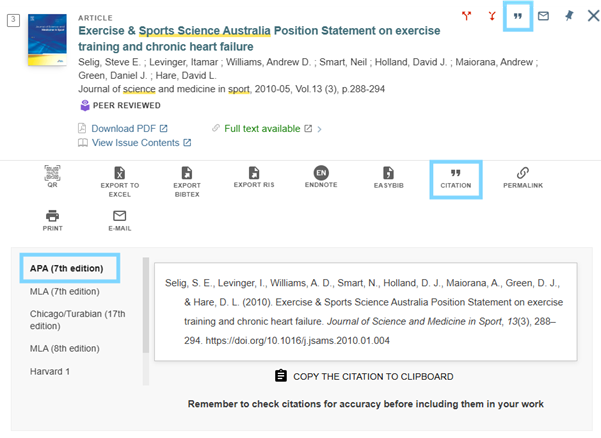
- Select the 'quotation mark' ❞ beside the result you want to reference
- Select 'Citation'
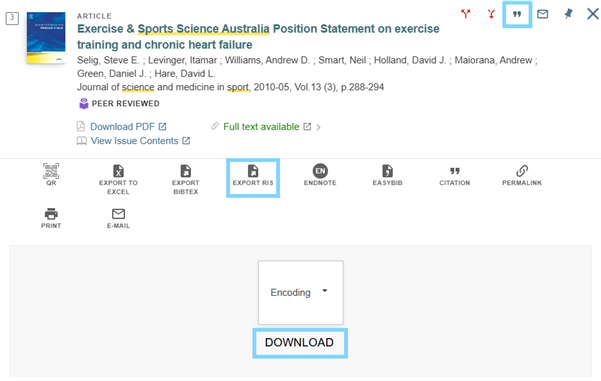
- Select 'Export RIS'
- Select 'Download'
- Open the downloaded .ris file
When you’re looking at an article in Library search you might see two red arrows to the right of each source, one set pointing up (find sources citing this) and the other pointing down (find sources cited in this). These options are great to help you find related articles.
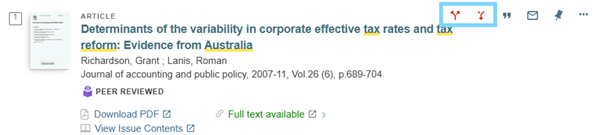
Find sources citing this
Shows you newer research that has referenced the article you are viewing. This is great for finding newer research related to the article.
Find sources cited in this
This lets you look at the references that are in the article itself. This is similar to the reference list in the article you are viewing.
Save your search results
Saving searches and setting up alerts in Library search helps you stay organised, track useful resources, and get notified when new research matching your interests becomes available.
- Sign in to your account
- In your search results select the pin icon📌 next to the item you would like to save
- To view your saved items, select the pin icon 📌(Go to my favourites) in the top right-hand corner of the page.
- Sign in to your account
- In your search results select the 📌'Save query' option at the top of the results page
- To view your saved items, select the pin icon 📌 (Go to my favourites) in the top right-hand corner of the page
- Select 'Saved searches' to view your searches.
- Sign in to your account
- To view your search history, select the pin icon 📌 (go to my favourites) in the top right-hand corner of the page
- Select 'Search history' to view your searches
- Sign in to your account
- Select the pin icon 📌 (Go my favourites) in the top right-hand corner of the page
- Select 'Search history' to view your searches
- Select the bell icon 🔔 next to your saved search to set an alert